


 AeroSpace
 yabai
 Amethyst
 OmniWM
 ChainYourMac
Compare nine Mac window managers, from keyboard-driven tiling to scrolling layouts and visual canvases. This guide covers the tools in our Mac window manager collection and explains where each one fits.
The comparisons below are based on published project descriptions and our catalog, rather than a hands-on performance benchmark. Features, pricing and availability can change, so check the linked project before installing.
At a glance
| App | Best for |
|---|---|
| AeroSpace | Keyboard-driven tiling |
| yabai | Scriptable layouts |
| Amethyst | Automatic tiling with preset layouts |
| OmniWM | Scrolling or split layouts |
| ChainYourMac | A scrolling row of windows |
| TileMyMac | A simpler scrolling workflow |
| Shoji | Automatic arrangement with little setup |
| TrellisWM | Nested arrangements |
| Trypane | A trackpad-friendly canvas |
1. AeroSpace: keyboard-driven tiling
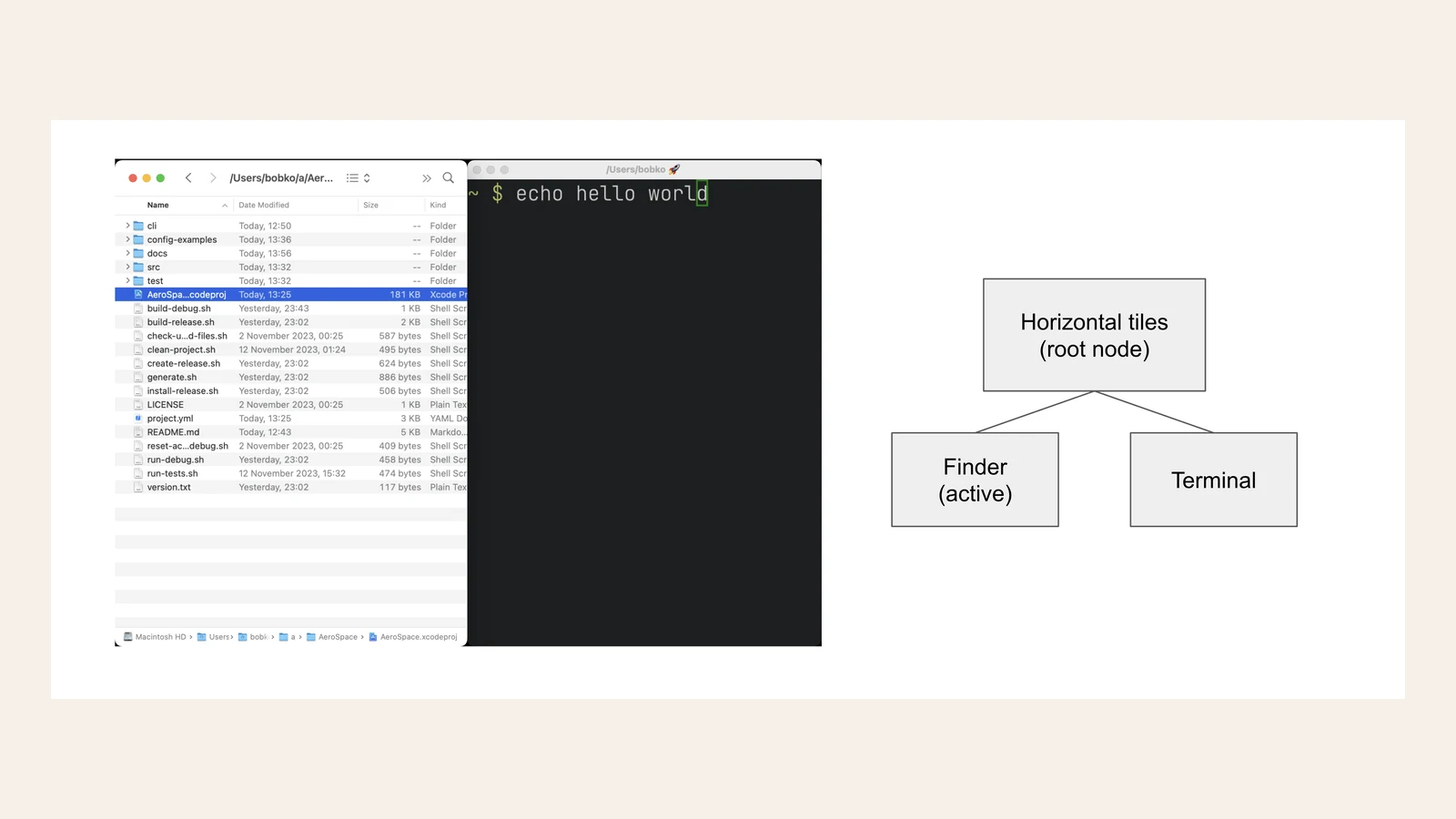
An i3-inspired tiling manager with tree-based layouts and virtual workspaces. Its TOML configuration and command-line controls make it a good match for people who keep their setup in dotfiles.
Availability: Free and open source. Beta and not notarized; check the project guide before installing.
2. yabai: scriptable layouts
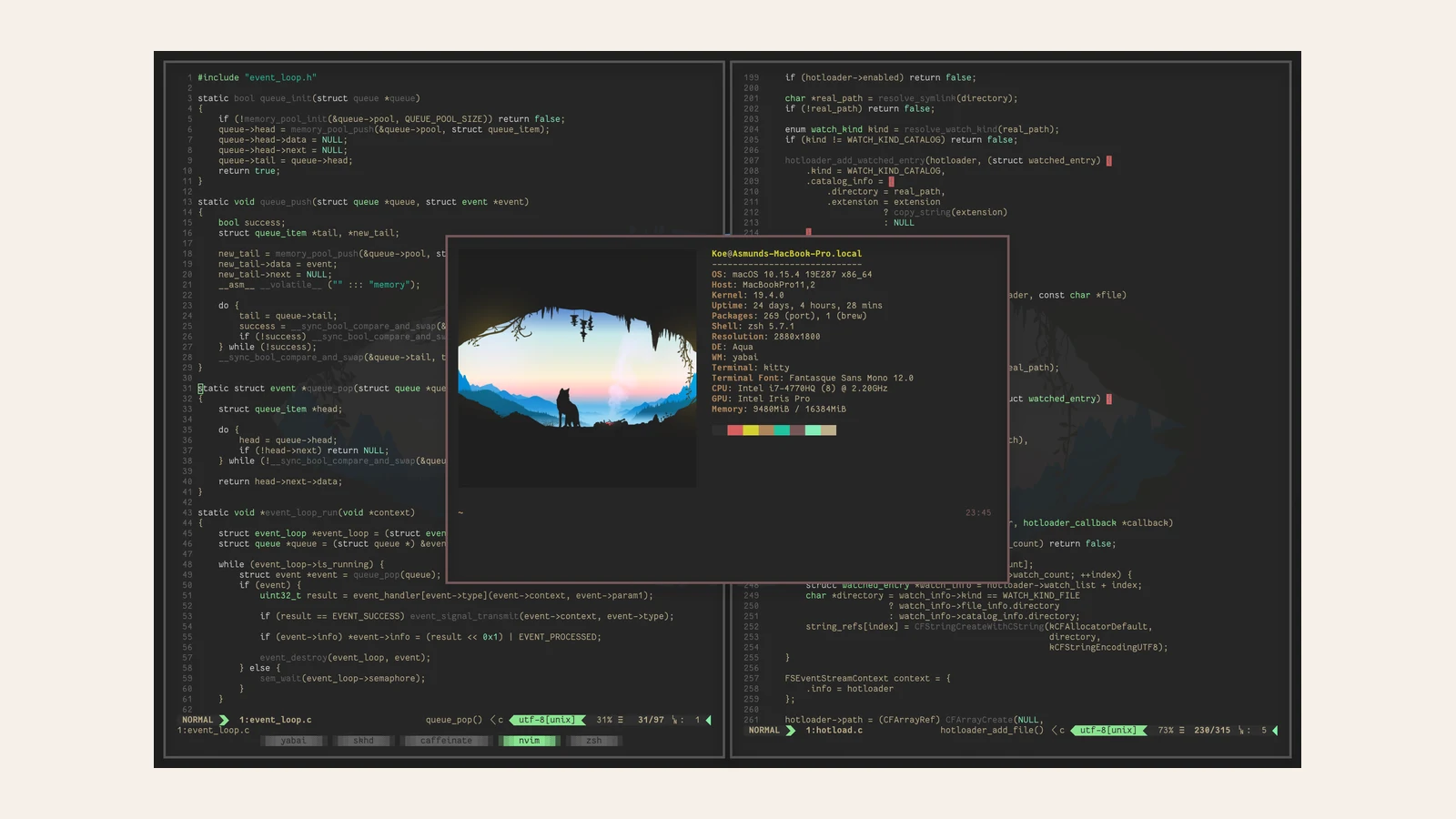
yabai uses binary space partitioning to arrange windows and offers extensive control over windows, spaces and displays. It suits a user who wants to script their environment rather than configure it through a visual interface.
Availability: Free and open source. Some advanced features require changes to System Integrity Protection; read the project documentation before enabling them.
3. Amethyst: automatic tiling with preset layouts

Amethyst arranges windows automatically and offers layouts such as tall, wide, columns and floating. Keyboard shortcuts and per-app rules make it useful when you want tiling without building every arrangement by hand.
Availability: Free and open source; requires Accessibility permission.
4. OmniWM: scrolling or split layouts

OmniWM offers Niri-style scrolling containers and a Dwindle-style split layout, with separate layouts per workspace and multi-monitor routing. Its optional CLI is useful for automation.
Availability: Free; requires Apple silicon and macOS 26 or later.
5. ChainYourMac: a scrolling row of windows

ChainYourMac puts windows side by side on a horizontal strip. New windows do not force the others to shrink; move along the strip with the trackpad or shortcuts.
Availability: One-time purchase; Apple silicon and macOS 13 or later.
6. TileMyMac: a simpler scrolling workflow

TileMyMac also uses a single horizontal row. It keeps its controls focused on opening, moving, resizing and navigating windows, making it worth a look if a compact set of shortcuts appeals to you.
Availability: One-time purchase; macOS 13 or later.
7. Shoji: automatic arrangement with little setup

Shoji tiles windows as they open and lets you adjust borders, spacing and colors. It is a sensible starting point if you prefer a ready-made layout over writing configuration files.
Availability: One-time purchase with a free trial; macOS 15 or later.
8. TrellisWM: nested arrangements
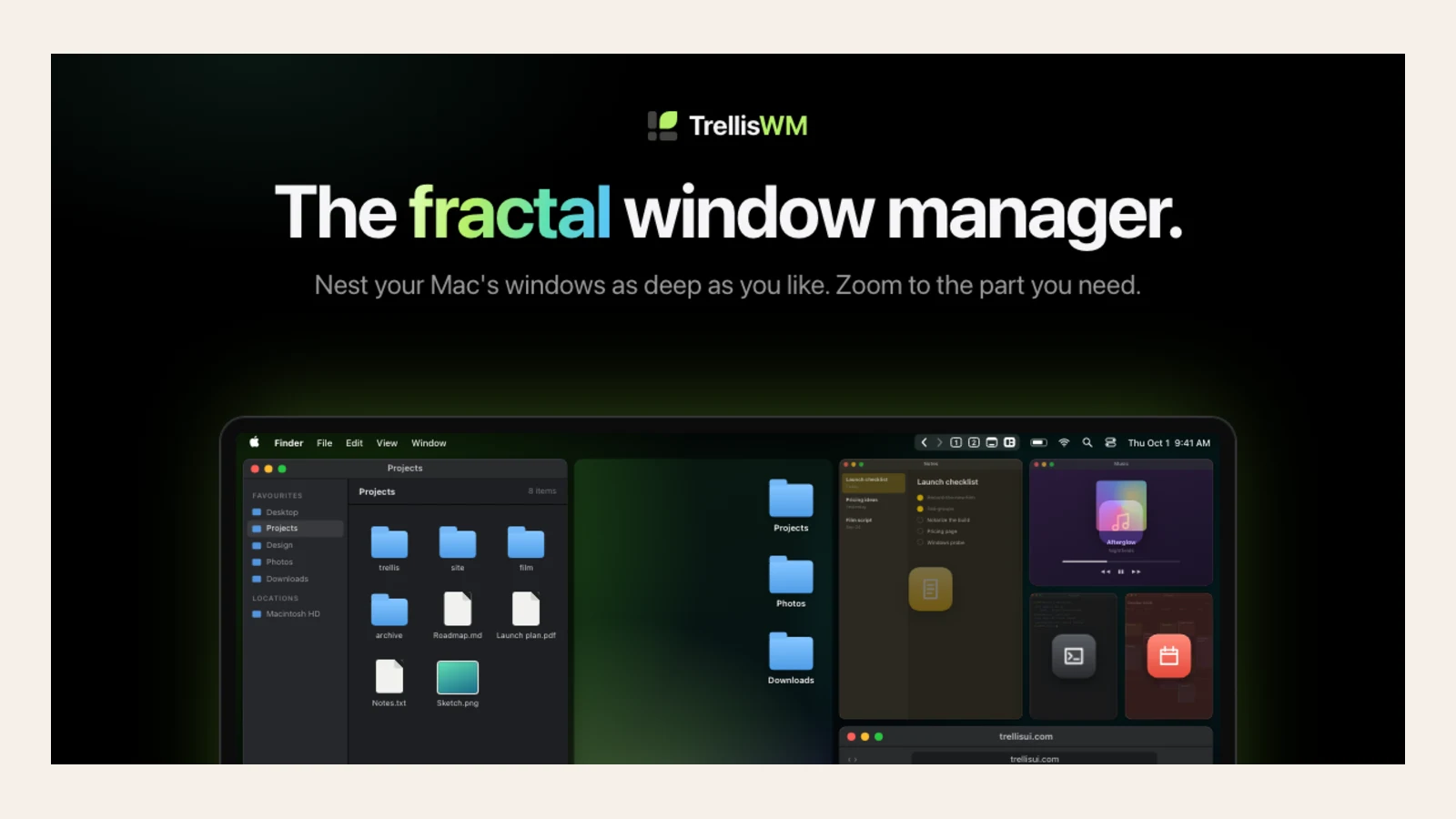
TrellisWM lets you nest windows, dock them together and zoom out to see the arrangement. It takes a different approach from a fixed grid, especially when you work with related groups of windows.
Availability: Apple silicon; tab groups and seam resizing are part of Pro.
9. Trypane: a trackpad-friendly canvas

Trypane places windows on a canvas that you pan and zoom with the trackpad. Click a window to focus it, then return to the canvas to move between tasks.
Availability: Apple silicon and macOS 15 or later; trial followed by a one-time purchase.
Which one should you try?
Choose AeroSpace or yabai if you want to control layouts from the keyboard and configuration files. Try Amethyst or Shoji for automatic tiling, ChainYourMac or TileMyMac for a scrolling row, and Trypane or TrellisWM for a more visual workspace.